
Excerpted from ‘Ultimate WordPress SEO Guide: Optimize Your Site in 2022‘ by Kato Nkhoma.
How to Optimize Your Blog Posts
Now that you know how to configure the basic WordPress SEO settings, it’s time to learn how to optimize your posts for SEO.
1. Keyword Research
Keyword research is a crucial part of SEO. It’s the practice of identifying the terms that people enter into search engines so you can use them in your posts.
Keywords are an important Google ranking factor that determines whether or not your post shows up in search results.
So, how do you do keyword research? There are a lot of different factors to consider:
- Relevancy – Make sure to choose the keywords that are most relevant to the content you’re providing
- High search volume – Choose the keywords that most people are likely to use
- Competition – Ideally, you need to use low competition keywords, so you can easily rank your content for them
We suggest using keyword search tools to find useful and high-volume keywords for your audience. You can also read more about how to do keyword research. You can also use a keyword rank tracker to monitor how you’re performing for your keywords.
2. Add Internal Links
Internal linking is simply linking one page to another page on your site. We call these links “internal” because they’re within your website.
So why are internal links SEO friendly?
They keep readers interested – When a user reads your blog post, they can click on an internal link to read another blog post, and so on.
For example, let’s say you write a guide about plant health. You could add internal links to other posts about house plants, outdoor plants, and trees.
A reader might think, “Wow! There’s so much information about plant health. I don’t need to go to another source, this website has everything I need.”
When readers are engaged with your content, it can increase your authority and rankings.
They improve site navigation – Internal links help your readers and Google navigate your site. Google, specifically, has an easier time identifying and ranking your posts for search.
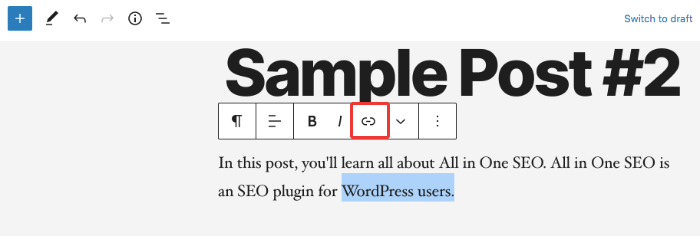
To add an internal link, head to your blog post. Highlight the word you want to link and click on the link icon.
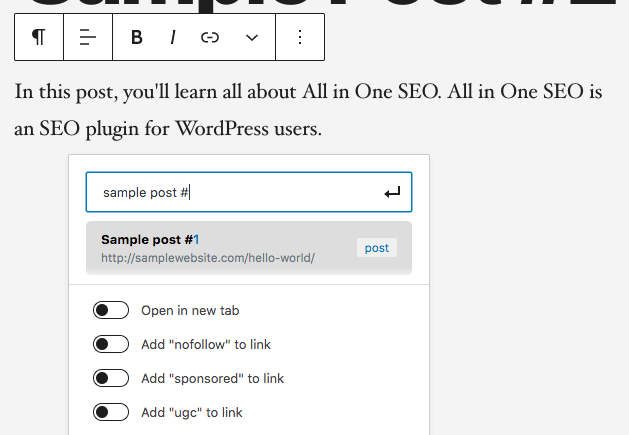
Type in a blog post you’d like to link and hit enter.
But as your website grows, remembering all the articles you can link to becomes next to impossible.
Again, this is where AIOSEO comes to the rescue with its powerful Link Assistant feature.
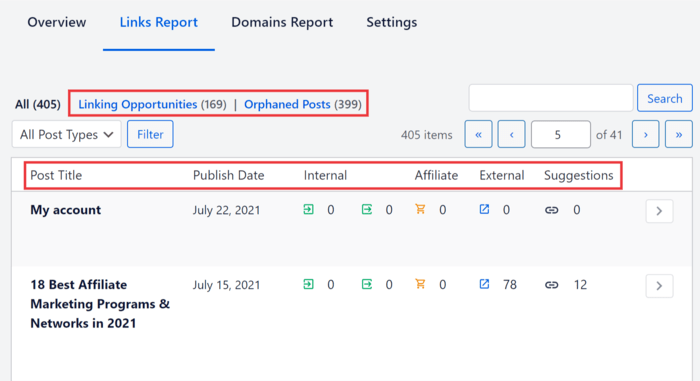
Link Assistant helps you build strategic internal links on autopilot, making the task much easier. In addition, it also shows the orphaned pages on your site. These are pages without any internal links, a problem that can hurt your SEO and user experience (UX).
To make internal linking easy and fast, Link Assistant will give you suggestions on which articles to link to in your content and the anchor text to use. You can opt to include all link suggestions at once or add them individually as you vet them.
Using Link Assistant is also super easy. With AIOSEO installed, scroll down to the bottom of your blog post. In AIOSEO Settings, you can click on the Link Assistant tab to see a list of internal link suggestions including relevant anchor text you can use.
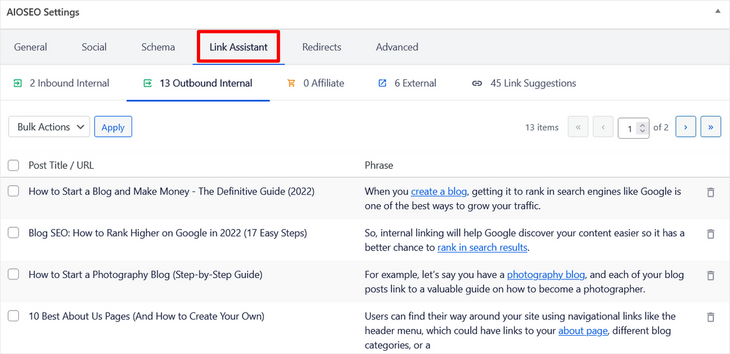
Simply select the link suggestions that you want to add to your post and click the Apply button. It’s that simple!
Another way to improve blog post navigation is with anchor links. Anchor links let readers jump around your page. This is especially important for long articles.
Anchor links are commonly used to link a table of contents to the post’s headings and subheadings. This post will teach you how to add anchor links.
Click here to learn more about how to improve internal link building.
3. Edit External Links
It’s common to add external links within your content. Websites externally link to other sites for a few reasons:
- Research
- Affiliate partners
- Recommendations
Linking to valuable sources can make your content more credible. But here’s the thing about external links.
When search engines identify them on your website, they can pass some of your link authority over to those external links.
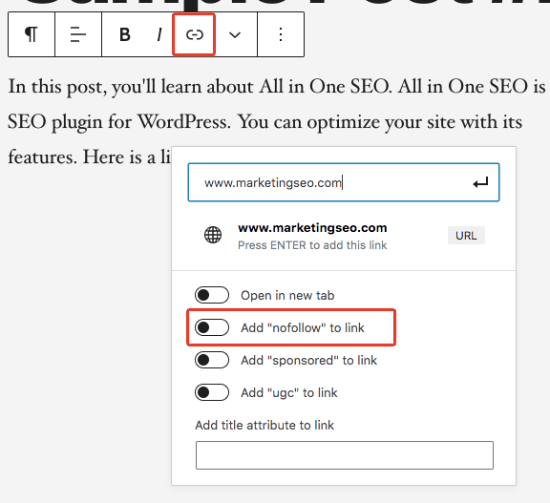
With that said, when you link to an outside source and you don’t want to pass the link juice, then add nofollow. This tells Google, “This link isn’t affiliated with my website. Please don’t crawl this link.”
You can add nofollow to your external links with All in One SEO.
Head to your blog post editing page. Select the block containing your link and hit the link icon. Once you insert your external link, click Add “nofollow” link.
4. Optimize Images
While images are a great addition to your content, they can slow down your site. You can avoid this with compressed, high-quality images. This is an important part of image SEO, another powerful.
When you compress a photo, it shrinks its image files without taking away the quality. We suggest compressing images before uploading them to WordPress.
Along with compressing images, you should also add a title and alt text to photos. Alt text stands for “alternative text.”
The alt text and title help Google understand what your images are. This is also a helpful tool for someone with vision loss.
You can add alt text and a title to each image you upload to WordPress.
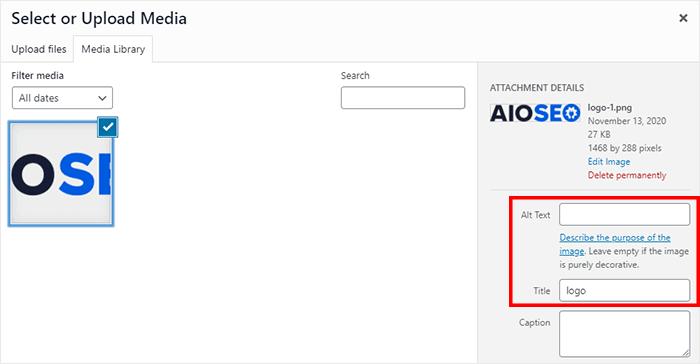
Try to add alt text and a title to each image you upload. If it makes sense, you can add keywords to rank your photos.
5. Add Categories and Tags
Organized content is easy to navigate—categories and tags help with that. Before we explain how categories and tags affect SEO, let’s explain what they are.
We’ll start with categories. Categories organize your posts by topic. For example, let’s say you own a Spain travel blog.
Some categories you might have are:
- Spanish cuisine
- Drinks
- Sightseeing
- Getting around
You can also think of categories as the chapters of a book—each chapter covers a broad topic. In WordPress, every post must be categorized, or else it’ll be labeled as “uncategorized.”
Now let’s talk about tags. While categories group your blog posts into broad topics, tags describe each blog post with 1 or 2 keywords.
Let’s go back to the Spain travel blog example.
Some tags you might add to blog posts about “Sightseeing” are:
- Architecture
- Statues
- Nature
See how these tags specify the category, sightseeing? So, if you write an article about Spain’s beaches, you would add “Sightseeing” as the category and “Nature” as the tag.
So how do categories and tags improve WordPress SEO?
Like internal links, categories and tags improve your site navigation. Readers and Google have an easier time going through your blog posts when they’re organized.
You can optimize your categories and tags with MonsterInsights’ category and tag tracker. This tool analyzes which categories and tags get the most traffic.
Don’t know how to add categories and tags to your post? You can read our guide: How WordPress Categories and Tags Work.
6. Optimize for Search Results
Now that your content is SEO-friendly, you can optimize it for search results.
This is one of the best ways to improve clickthroughs of your content in the results, so you can possibly drive more traffic.
From your post or page editor, scroll down until you see AIOSEO Settings. Enter the title of your blog post under Post Title.
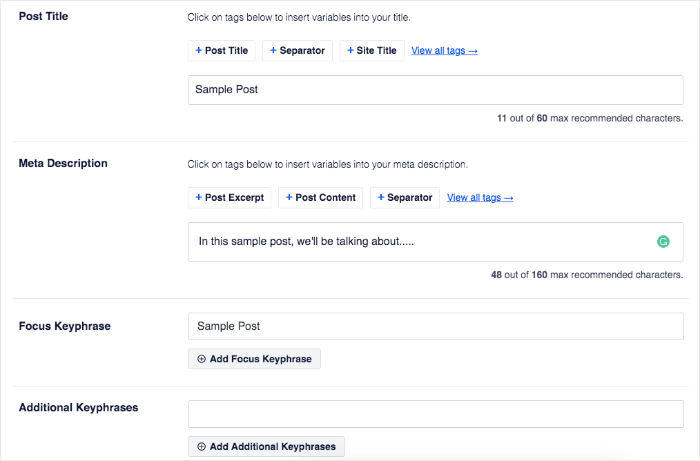
AIOSEO will calculate how long your title tag is. It shouldn’t be any longer than 60 characters.
Next is your meta description. Your meta description summarizes your content on search engines. All in One SEO suggests keeping your meta description at 160 characters or less.
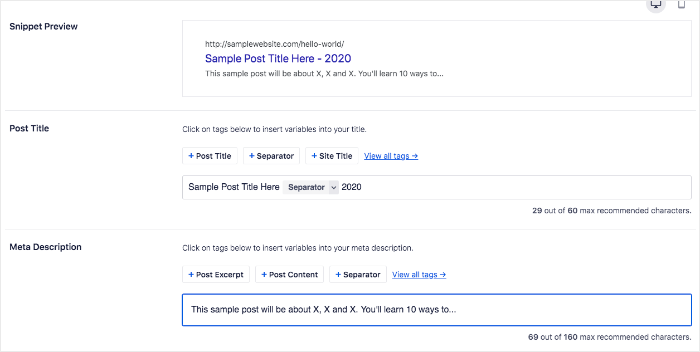
Last are your keywords. When you enter your primary and secondary keywords, AIOSEO will evaluate how well they’re placed.
It can also analyze your on-page SEO—content length, internal links, and external links are a few examples.
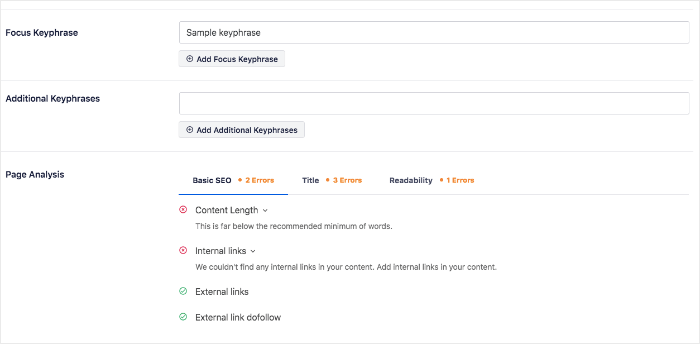
Optimizing for search results will help improve your clickthrough rates and, ultimately, your SEO.
7. Optimize for Multilingual SEO
The internet has helped the world become a global village. As a result, you can get website visitors from every corner of the globe. That’s why a WordPress SEO hack you must employ is optimizing for multilingual SEO. This simply means optimizing your website and its content for discoverability in localized native languages.
With AIOSEO’s translation API, optimizing for multilingual SEO is super easy. That’s because the API was designed to make it easy for your translation plugin to localize important elements of your content. Examples include keywords, metadata, social settings, and much more.
Implementing multilingual SEO will result in your content having a better chance of ranking internationally.
8. Respond to Comments
It’s always encouraging to receive comments from your readers…But sometimes it can get out of hand.
First things first, get rid of spam comments. Spam comments take up space and add no value to your content. Plus, spam comments used to have bad links, which could sabotage your authority and negatively impacts SEO.
A spam filtering service like Akismet will keep those comments out of your site.
Whew, that was an easy fix. But here’s another problem you may come across—a LOT of comments.
While blog post comments boost WordPress SEO (and make you feel good), they can also slow down your site speed.
If this is the case, you’ll have to split your comments into different pages. This post will help you paginate comments, step by step.
9. Analyze Your Site
You won’t know how your WordPress SEO is doing without analyzing your site. You can target critical issues and warnings with AIOSEO’s site analysis feature.
Under All in One SEO, click on SEO Analysis.
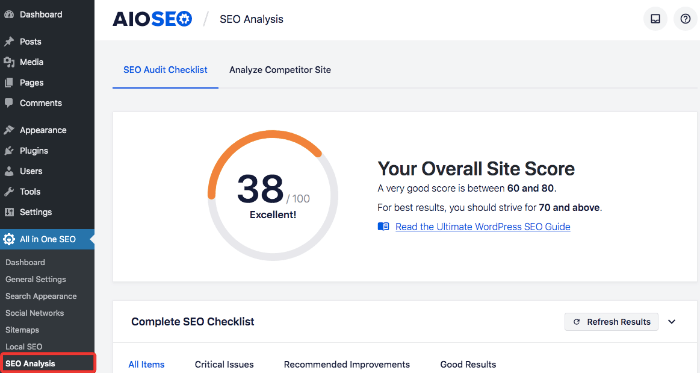
From here, you can check your SEO site score. The general rule of thumb is to aim for a score of 60 and above. If you end up with a low score, then scroll down and look for the recommendation to improve your overall score and ranking.
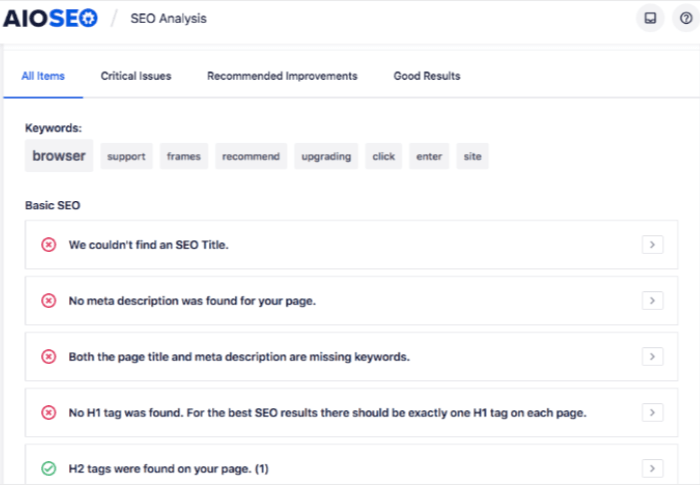
For example, from the above screenshot, it looks like this website is missing some critical areas of basic SEO. Now that we know these problems, we can fix them and raise our SEO score.
On another note, you can also analyze competitor sites. Click on Analyze competitor site and enter their URL.
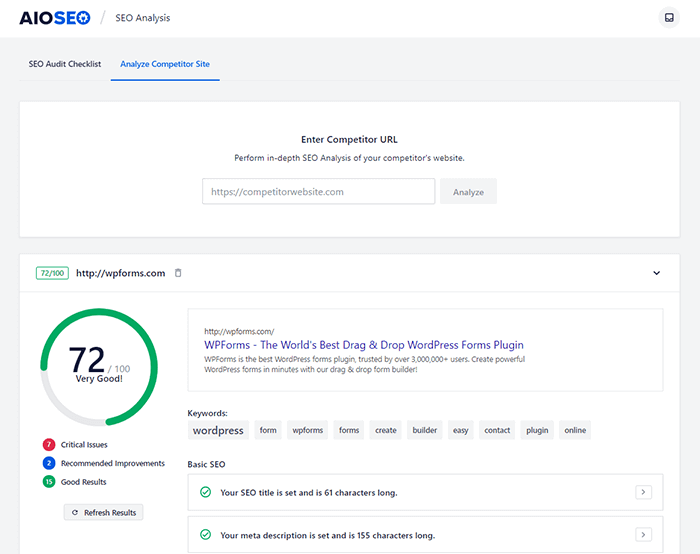
From here, you can compare important metrics, like keywords and site loading time.
Along with AIOSEO, you should also use Google Search Console and MonsterInsights to analyze organic traffic.
You can learn more about using MonsterInsights with this guide: How to add Google Analytics the right way.
10. Add Schema Markup
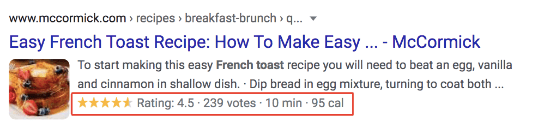
Schema markup is code that you put on your website to help search engines return more informative results for users. With schema markup, you can add rich snippets to your search results, which could improve your organic traffic
For example… have you ever seen search results that look like this?
Or maybe this?
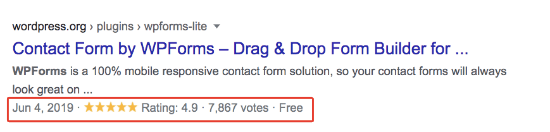
These are 2 examples of schema markup. Without a doubt, schema markup reveals more information about the page than a typical search snippet, which helps your business stand out from other search results and also boost organic traffic.
To add schema, click on Search Appearance under All in One SEO.
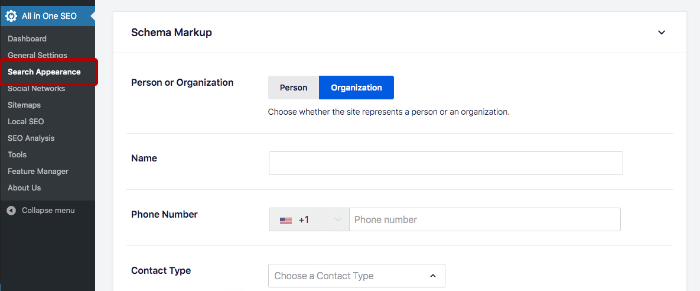
Then, scroll down to Schema Markup.
Enter your business’ information to add schema markup on Google. If you’re a local business, you can add local schema with our local SEO feature.
11. Optimize Your Social Sharing
You’ve probably shared a blog post on Twitter or Facebook at least once. When you share a blog post, something like the image below will be seen in your feed.

Notice how the headline, description, and featured image are ready to share? This didn’t happen by accident—Smash Balloon optimized its social settings.
Optimizing your social settings does 2 things:
It makes it easy to share – With everything ready to go, all users have to do is click “share.”
Keywords and alt text – You can add your keywords and alt text to the image, title, and description for extra optimization.
With AIOSEO, you can set up Facebook and Twitter sharing. On your blog post editing page, head back to AIOSEO settings and click on Social.
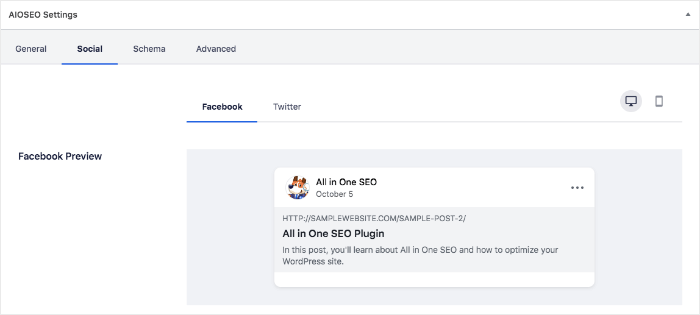
As you scroll down, edit your title, description, and media. We recommend using relevant keywords and alt text to optimize the post.
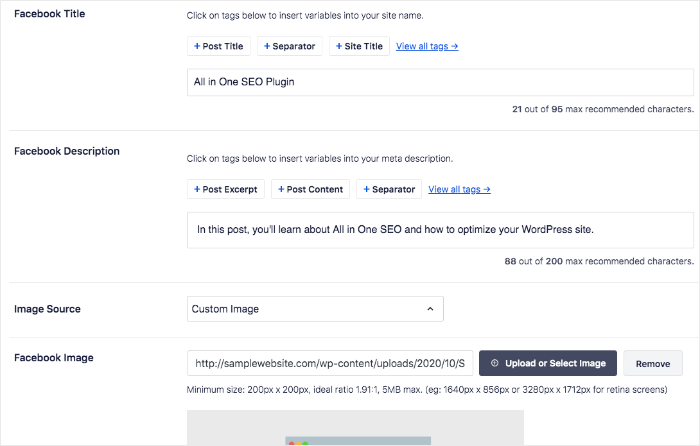
Now your blog post is ready for social sharing. You can add social sharing buttons to your blog with this post: How to add social share buttons.
And that’s all!
We hope this article helped you understand what WordPress SEO is and how to get started. Make sure to follow every step, and your WordPress SEO will be optimized in no time! You may also want to check out our ultimate link building guide, or see our expert pick of the best WordPress themes for SEO. These are resources that will help further boost your WordPress SEO.
If you enjoyed this article, we recommend that you subscribe to our YouTube Channel. You’ll find many helpful tutorials there. You can also follow us on Twitter, LinkedIn, or Facebook to stay in the loop.

